OmicsBox Web
Introduction
OmicsBox Web is a browser-based companion application that provides access to cloud storage, job monitoring, and result visualization without installing the desktop application. It is available at omicsbox.biobam.com and uses the same OmicsBox account credentials.
OmicsBox Web is designed to complement the desktop application. While the desktop application is the primary environment for configuring and running bioinformatics analyses, OmicsBox Web allows users to monitor running jobs, browse cloud files, inspect results, and manage account settings from any device with a web browser.
Sign in using your OmicsBox account email and password, or use Google Sign-In if your account is linked.
Dashboard
The Dashboard is the landing page after signing in. It provides a quick overview of the current account status with 3 summary cards:
- Running Jobs: displays the currently active cloud jobs with their name, ID, and elapsed time. Clicking on a job navigates to the Jobs page for more details.
- Used Storage: shows how much of the cloud storage quota is in use, including a progress bar and the percentage of the 5 TB limit.
- Cloud Unit Balance: displays the remaining Cloud Units available in the account, with a link to recharge.
The Dashboard also shows the latest blog posts from the BioBam blog, keeping users informed about new features, tutorials, and bioinformatics resources.
Files
The Files page provides a browser-based file manager for the user's cloud storage. It offers the same functionality as the Cloud Files view in the desktop application, allowing users to browse, upload, download, and organize files stored in the cloud.
Key features of the Files page:
- Browse folders and files stored in the cloud with a familiar table layout.
- Upload files by dragging and dropping them into the browser or by using the upload button.
- Import data from an FTP server, an HTTP or HTTPS address, or an Amazon S3 bucket with the Import Data menu, without downloading the files to the local computer first.
- Download files directly to the local computer.
- Create folders to organize data.
- Delete files and folders that are no longer needed.
- Open result files by double-clicking on
.boxfiles, which opens them in the Results viewer.
The Files page is also used for data import. Users can upload input data for analyses directly through this page, making it available to Cloud Sync tools both from the desktop application and from OmicsBox Web.
For more information about cloud storage, see Cloud Files.
Jobs
The Jobs page displays the cloud job history in a detailed table. This is the same Cloud Usage component used in the desktop application, providing a consistent monitoring experience across both platforms. For a detailed description of the table columns and available actions, see Review Cloud Usage.
The Jobs page includes the same features as the desktop Cloud Usage view:
- View the status, progress, and runtime of all submitted jobs.
- Cancel running jobs.
- View logs for any cloud job session.
- View messages showing the detailed algorithm output.
- View details with the full job metadata and parameters.
- Filter and sort jobs by any column, including date range filters.
Additionally, the Jobs page in OmicsBox Web provides a side panel layout. Clicking the log or details icons opens the corresponding panel next to the job table, allowing users to inspect job information without leaving the page.
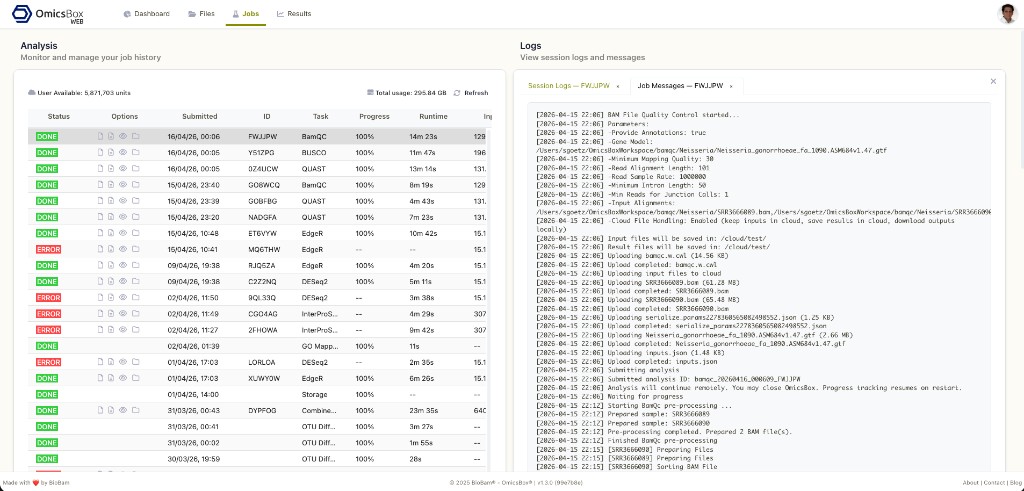
Figure 1. Jobs page with the job history table on the left and the session logs panel on the right.
Results
The Results page provides an interactive viewer for analysis output files. When a .box result file is opened from the Files page, it is displayed here using resizable and movable panels.
The Results viewer supports charts, pathway diagrams, and other visualization types produced by OmicsBox tools. Multiple result files can be open at the same time, each in its own panel. The layout is automatically saved between sessions.
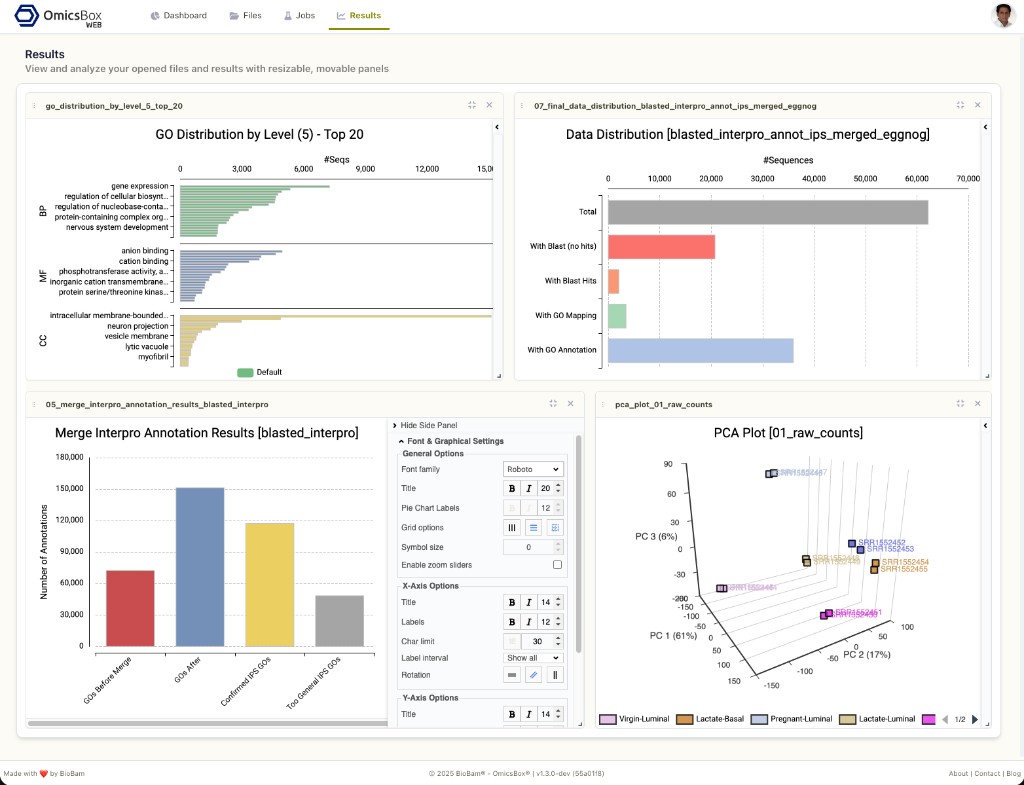
Figure 2. Results page showing multiple analysis charts in resizable and movable panels, including GO distributions, data distribution, annotation results, and a PCA plot.
Settings
The Settings page provides account management and configuration options. It is organized into the following sections:
Subscription details
Displays information about the current OmicsBox subscription, including:
- Product name and subscription status (Active, Evaluation, or Inactive).
- Activation and end dates with the total subscription duration.
- Licensed modules showing which OmicsBox modules are available.
- Subscription key (hidden by default, can be revealed).
- Cloud Computation Units balance with a link to recharge.
User management
Subscription administrators can manage user access from this section. It allows adding or removing users who are authorized to use the subscription. This is useful for teams and organizations that share a subscription across multiple researchers.
Security and session
This section provides security settings for the account:
- SMS two-factor authentication (2FA): enables or disables SMS-based two-factor authentication for additional account security when signing in with email and password.
- Session preferences: configures how long the user stays signed in on the current device after each login.
Engine API Keys
Users whose subscription includes the OmicsBox Engine can create and revoke personal API keys. A key lets the OmicsBox Engine or an AI assistant sign in without an interactive login, for example on a computing cluster. See Connect with an Engine API key.
Connected apps
This section lists the AI assistants and other apps that are allowed to use OmicsCloud on behalf of the user, with the subscription each one is billed to. Selecting Disconnect removes access immediately. It appears once at least one app is connected. See Manage and disconnect assistants.