Built-in Commands
Alongside the analysis tools, the OmicsBox Engine provides a set of built-in commands for discovering tools, managing cloud runs, signing in, and configuring the CLI. They are grouped below by purpose. For the flags shared by analysis tools, see Global Options.
Commands in the Discovery, Configuration and Utilities groups work offline. The Runs & cloud storage group requires an activated, signed-in account (see Installation & Activation).
Most commands accept --output-format TEXT|JSON for machine-readable output, and -h/--help for usage.
Discovery
list
List the available tools. Shows the primary analysis tools by default.
--group <name>— filter to one module, e.g.Metagenomics(case-insensitive).--all— include charts, loaders and other extra tools.--output-format TEXT|JSON
omicsbox list
omicsbox list --group Metagenomics --all
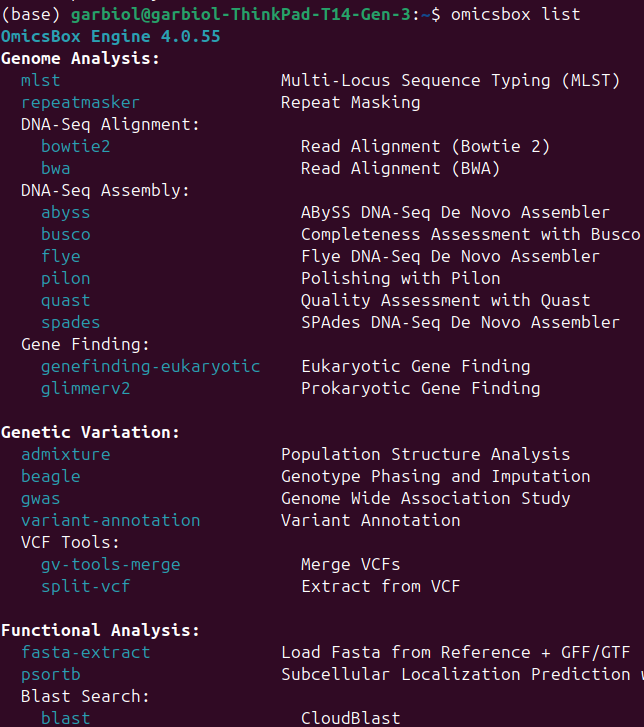
Figure 1. list command
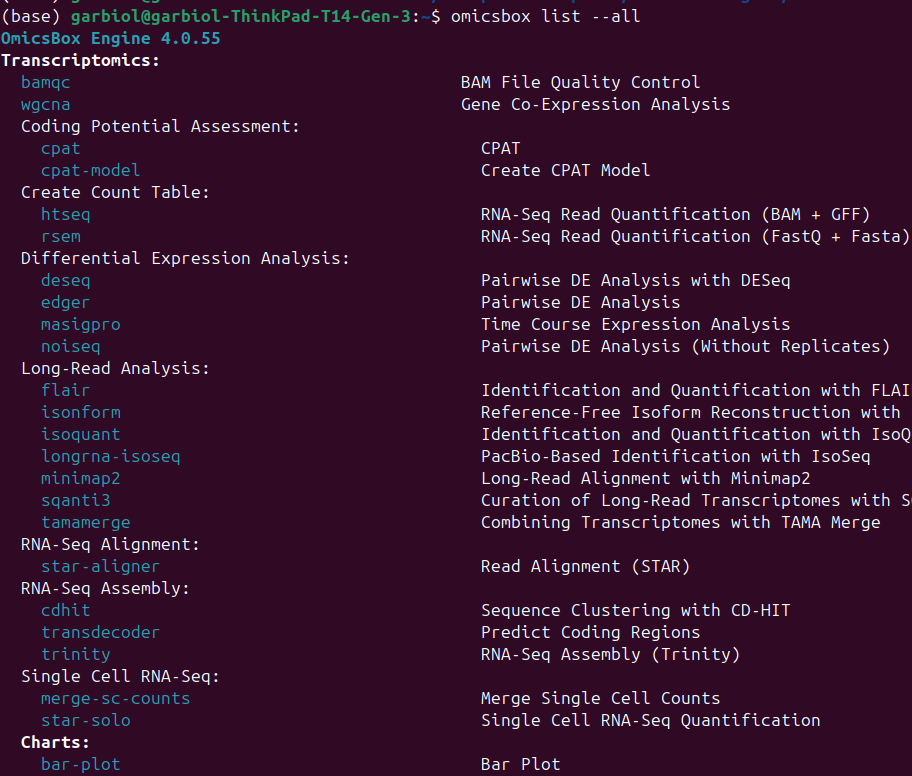
Figure 2. list --all command
describe
Show a tool's inputs, parameters, defaults and constraints. Generated live from the tool, so it always reflects the current command line.
<tool>— the tool's short name (required).--save-template [path]— write a YAML configuration skeleton for use with--config.--output-format TEXT|JSON— same information, rendered as JSON instead of text.--full— add parameter types, defaults, numeric ranges, value candidates, argument groups, and the complete relationship graph (default: names and flags only). Works with either output format.
omicsbox describe kraken2
omicsbox describe kraken2 --full --output-format json  # full machine spec
omicsbox describe blast --save-template ./blast.yaml
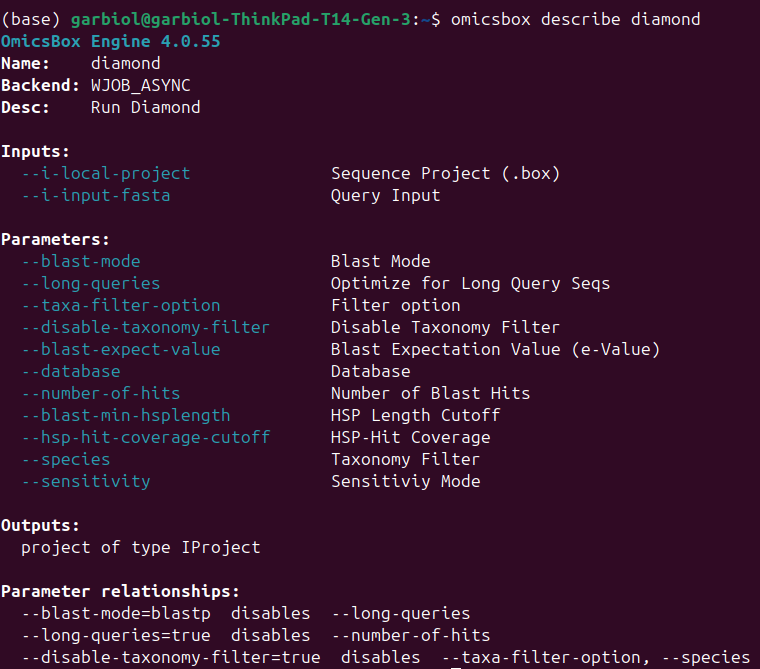
Figure 3. describe diamond command
version
Print the Engine version.
omicsbox version
refresh-catalog
Rebuild the local tool catalog cache immediately. Rarely needed — the cache refreshes itself automatically when the installed version changes.
omicsbox refresh-catalog
Authentication
These commands manage activation and sign-in. They are described in full in Installation & Activation.
activate
Activate OmicsBox with a subscription key, then sign in automatically.
<subscriptionKey>— the 45-character key (prompted for if omitted).--no-login— persist the key only; do not sign in.--no-browser— print the sign-in URL instead of opening a browser.--timeout <seconds>— how long to wait for sign-in (default 300).
omicsbox activate <key>
login
Sign in to OmicsCloud through the browser. Requires a subscription key to have been activated (or OMICSBOX_SKEY to be set). It is automatically called after the activate command.
--no-browser— print the sign-in URL instead of opening a browser.--timeout <seconds>— how long to wait (default 300).
omicsbox login --no-browser
logout
Sign out of OmicsCloud.
--forget-key— also remove the stored subscription key (full reset).
omicsbox logout
whoami
Show your current activation and sign-in status. Local only — makes no network calls.
omicsbox whoami
Runs & cloud storage
These commands act on cloud runs and cloud storage and require sign-in. A run ID comes from a detached run or from a JSON manifest.
status
Show the status of a cloud run, and optionally download its outputs.
<runId>— the run to query (required).-d,--download— download the run's outputs once it isCOMPLETE.--local-folder <path>— destination for--download.
omicsbox status <runId>
omicsbox status <runId> --download --local-folder ./results
logs
Stream a cloud run's log messages.
<runId>— the run to query (required).--follow— keep printing new log events until the run finishes.--since <offset|timestamp>— only show logs after this point, e.g.-30mor an ISO-8601 time.
omicsbox logs <runId> --follow --since -30m
cancel
Cancel a running cloud run.
<runId>— the run to cancel (required).--yes— skip the confirmation prompt.
omicsbox cancel <runId> --yes
cloud-files
List files in your OmicsCloud storage. Printed paths can be pasted directly into a tool's --i- input flags.
[path]— optional folder prefix to filter by.--refresh— bypass the local cache and fetch a fresh listing.
omicsbox cloud-files async_inputs/fastq --refresh
Configuration
config
Read and write the persistent CLI configuration in ~/.omicsbox/config.yaml. See Global Options for the available keys.
omicsbox config set local_folder ~/omicsbox-outputs
omicsbox config get output_format
omicsbox config list
Credential-like keys (containing token, skey, password or secret) are rejected — provide credentials through the OMICSBOX_SKEY environment variable instead.
Utilities
export
Export a .box result file to a portable format.
<input.box>— the file to export (required).-f,--export-format <fmt>—png,pdf,csvorbox(defaultpng).-o,--output <path>— output path (defaults to the input path with the new extension).
omicsbox export chart.box --export-format png --output chart.png