Working with Your Assistant
This page describes a typical analysis with an AI assistant connected to OmicsBox: how to provide your input files, run a tool, follow the job, and open the results. To connect an assistant first, see Connect Your AI Assistant.
A typical analysis
Every analysis follows the same steps. You describe what you want, and the assistant takes care of the details:
- Find the tool. Name the analysis or the tool, for example "InterProScan" or "differential expression with DESeq2". If you are not sure which tool fits, ask the assistant to suggest one.
- Provide the input files. The assistant works with files in your OmicsBox cloud storage (see Provide input files).
- Run the analysis. The assistant reads the parameters of the tool, asks you about any value it cannot work out, and submits the job to OmicsCloud.
- Follow the job. The assistant reports a run ID and the current state of the job. Ask for the status at any time.
- Open the results. When the job is complete, the assistant gives you links to open the results in OmicsBox Web (see Open the results).
Provide input files
OmicsBox runs in the cloud and cannot read files on your computer. Every input must be in your OmicsBox cloud storage. There are 3 ways to get it there:
- Files already in the cloud. Files you uploaded before from the desktop application or from OmicsBox Web can be used directly. Tell the assistant the file name or folder, or ask it to list the files in a folder.
- Files on your computer. Ask the assistant to upload a file. Most assistants that run in a browser or a desktop app cannot send files to OmicsBox themselves. In that case, the assistant gives you a link that opens the Files page of OmicsBox Web in the Uploads folder. Drag your file into the page, wait for the upload to finish, and tell the assistant. It then checks that the file has arrived. Assistants that run on your own computer with network access, such as Claude Code, can upload local files directly.
- Files on a public server or in Amazon S3. On the same Files page, open the Import Data menu (Figure 1) to copy data straight into your cloud storage from an FTP server, such as the NCBI FTP site, from an HTTP / HTTPS address, or from an Amazon S3 bucket. Public buckets need no credentials, and private buckets can be accessed with your own access keys. The data is copied from cloud to cloud, so large files do not pass through your computer.
For more information about cloud storage, see Cloud Files.
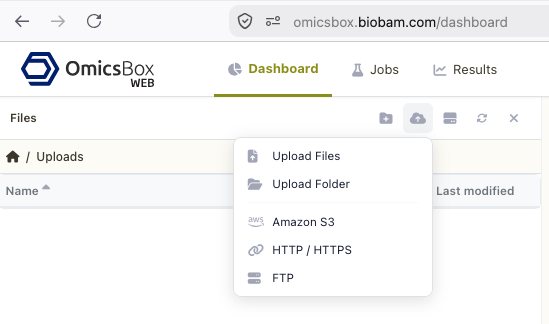
Figure 1. The Files panel in the Uploads folder. The Import Data menu uploads files and folders from your computer or imports data from Amazon S3, HTTP or HTTPS, and FTP.
Run the analysis
Before the job starts, the assistant reads the exact inputs and parameters of the tool. It fills in the values you asked for and uses the default value for the rest. To review the settings first, ask it to show the parameters before running the tool.
The job runs in OmicsCloud in the same way as a cloud job started from the desktop application. It uses Cloud Units from the subscription you chose when you connected. Cloud analyses also appear in the Jobs page of OmicsBox Web and in the Cloud Usage view of the desktop application.
If you submit the same request twice within 20 minutes, OmicsBox returns the job that is already running instead of starting a second one.
Follow the job
Cloud jobs can take from a few minutes to several hours. The assistant does not wait for the job to finish. It tells you the run ID and the current state, and you can continue the conversation or come back later.
The state of a job is one of the following:
| State | Meaning |
|---|---|
QUEUED |
The job has been submitted and is waiting to start. |
RUNNING |
The analysis is running in OmicsCloud. |
COMPLETE |
The job has finished and the results are available. |
EXECUTOR_ERROR, SYSTEM_ERROR |
The job has failed. Ask the assistant to show the logs. |
CANCELED |
The job was cancelled. |
To check a job later, ask "How is my job going?" in the same conversation. In a new conversation, give the assistant the run ID. You can also ask the assistant to cancel a job or to show its log messages.
Open the results
Unless you ask for a different folder, the results of each job are saved to their own folder in your cloud storage, inside mcp_results. When the job is complete, the assistant can give you:
- A link to open each result in the Results viewer of OmicsBox Web. Charts open in the chart editor, where you can change the title, fonts, and colors and export the chart as PNG, PDF, or CSV. Reports and projects open in their own viewer, and reports can be exported as PDF.
- A link to the output folder in the Files page of OmicsBox Web. This link does not expire.
- Download links for the individual result files. These links expire after 15 minutes. Ask the assistant for new ones when needed.
If you are not signed in to OmicsBox Web when you open a link, you are asked to sign in and then taken to the result.
The assistant can also read the result tables to summarize them for you, for example the number of significant genes or the most abundant taxa. It can then run further OmicsBox tools on the results, such as charts or exports. Results remain in your cloud storage, so you can also open them later from the desktop application.
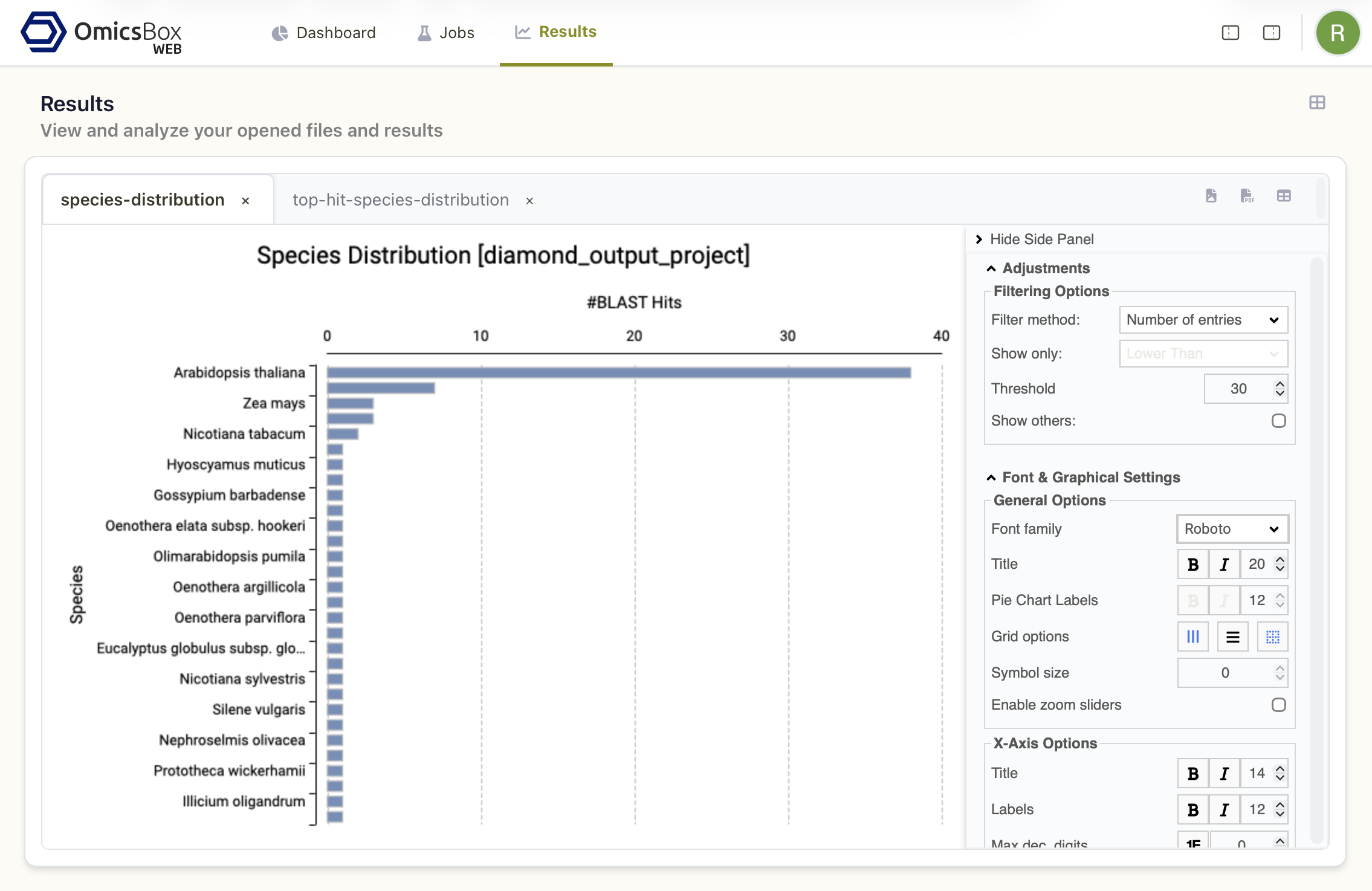
Figure 2. A chart opened from an assistant link in the Results viewer of OmicsBox Web. The side panel adjusts filters, fonts, and axes, and the icons at the top right export the chart.
Example requests
The following requests show what you can ask. Adapt the file names to your own data.
Discover tools
- "Which OmicsBox tools can I use for functional annotation?"
- "What inputs and parameters does the Fasta Splitter need?"
Sequence tools
- "Split assembly.fasta in my Uploads folder into 4 parts."
- "Run FastQC on the FASTQ files in the Uploads/run42 folder."
Functional annotation
- "Run InterProScan on proteins.fasta and tell me when it is done."
- "Run a DIAMOND search of proteins.fasta against a protein database. Which databases can I choose?"
Transcriptomics
- "Run a differential expression analysis with DESeq2 on counts.txt. The conditions are in design.txt, compare treated with control."
- "Which charts can you create from the results of my last differential expression analysis?"
Follow and chain jobs
- "What is the status of run interproscan_20260924_101500_ABC123?"
- "When the split is finished, run InterProScan on each part."
Tools used by the assistant
The assistant uses a small set of OmicsBox tools behind the scenes. You do not need to call them yourself, but their names may appear in the conversation or in a permission prompt.
Tool reference
| Tool | What it does |
|---|---|
omicsbox_list_tools |
Lists the OmicsBox tools, optionally filtered by module. |
omicsbox_search_tools |
Searches the tools by name, description, and group. |
omicsbox_describe_tool |
Shows the inputs, parameters, defaults, and outputs of a tool. |
omicsbox_upload_file |
Prepares an upload of a file to your cloud storage, including the OmicsBox Web upload link. |
omicsbox_list_files |
Lists the files in a folder of your cloud storage. |
omicsbox_run_tool |
Submits a job to OmicsCloud and returns its run ID. |
omicsbox_get_run_status |
Reports the state of a job. |
omicsbox_get_run_logs |
Shows the log messages of a job. |
omicsbox_download_results |
Returns the links to open and download the results of a job. |
omicsbox_cancel_run |
Cancels a job. |
omicsbox_auth_status |
Shows which account and subscription the connection uses. |